

Create a Droplet
Register on DigitalOcean and navigate to the Droplets section to create a new Droplet.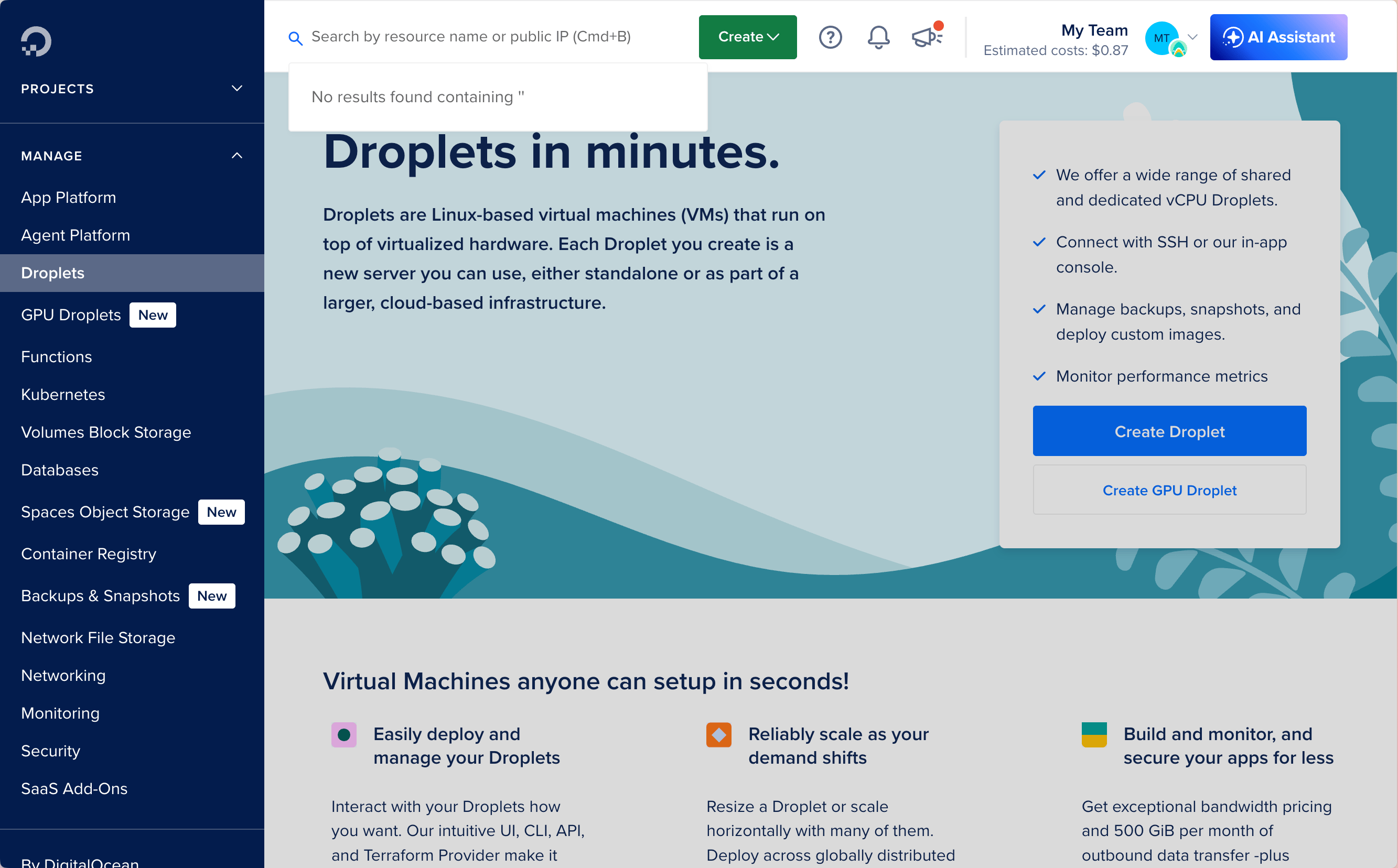
Basic plan with a Regular disk. This currently costs around $4/month and provides more than enough resources to run IronClaw for most use cases.
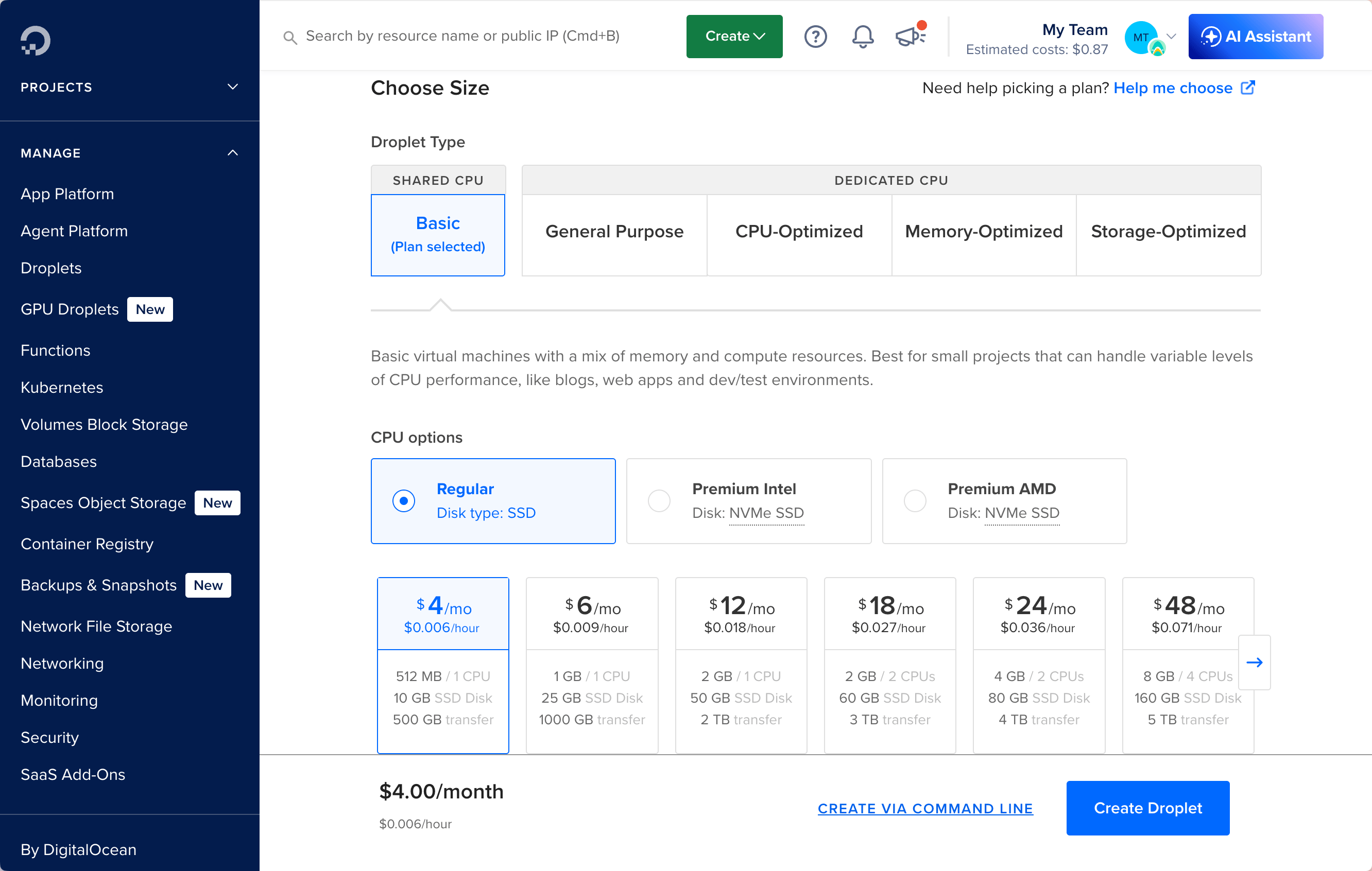
ssh-keygen command, then add the public key to your DigitalOcean account.
You could also log in with a password, but using SSH keys is more secure and recommended. Make sure to keep your private key safe and do not share it with anyone.
Access Your Droplet
Once your Droplet is created, you can access it via SSH using the IP address provided by Digital Ocean.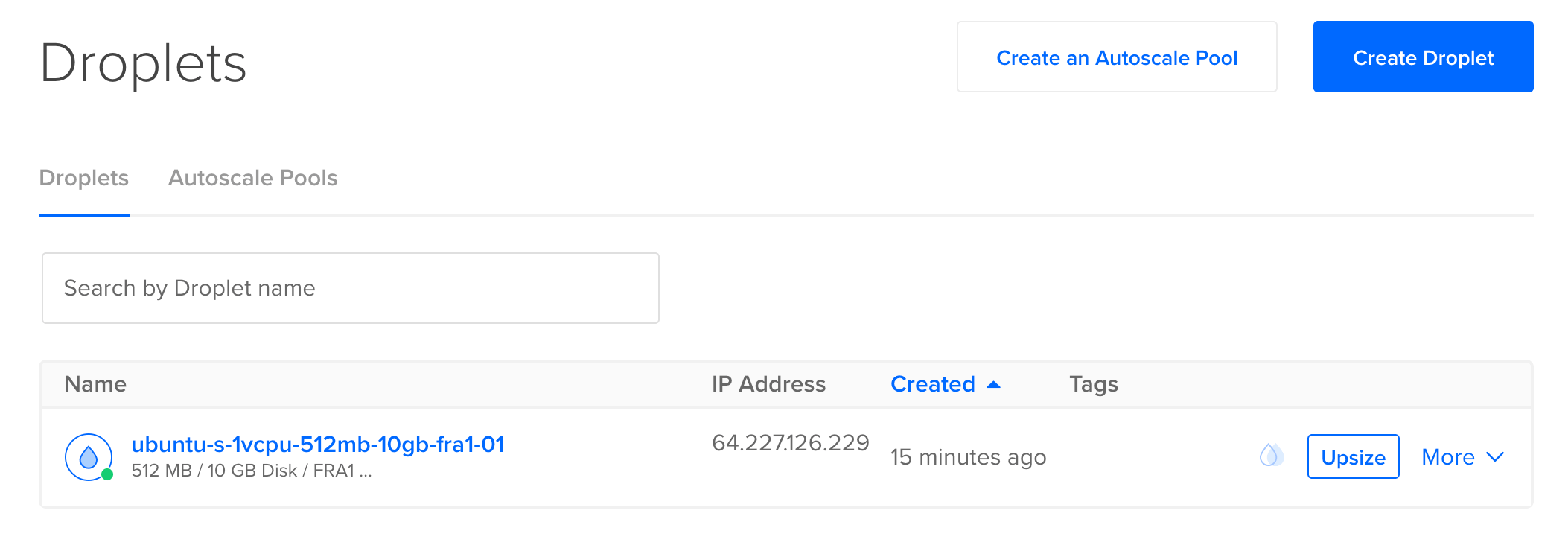
root user to your Droplet:
Configure Your Droplet
Now that we are inside the Droplet, we need to perform some initial configuration. In particular, we do not want to leaveroot as the default user, and we want to strengthen Droplet security by setting a few firewall rules.
Update and Upgrade
First, let’s make sure the system is up to date:Create a New User
It is good practice to create a new user with sudo privileges instead of usingroot for daily operations. You can create a new user (for example, ironclaw) and add it to the sudo group:
root to the new user:
Harden SSH Access
To enhance the security of your Droplet, it is recommended to disable password authentication and root login for SSH. You can do this by editing the SSH configuration file/etc/ssh/sshd_config and setting the following parameters:
PermitRootLogin no in the SSH configuration and rebooting again.
Install Fail2Ban
To further enhance Droplet security, install Fail2Ban. It helps protect against brute-force attacks by monitoring log files and banning IP addresses that show malicious behavior.Setup Firewall
It is also a good idea to set up a firewall to restrict access to only the necessary ports. You can useufw (Uncomplicated Firewall) for this purpose:
Install IronClaw
Now that we have set up and secured the Droplet, we can proceed with the IronClaw installation. You can follow the installation instructions in the Quickstart Guide to get IronClaw up and running.onboard prints a login link for the web interface. On a remote host, forward the port
from your own machine rather than exposing it:
serve itself, so the two
cannot share the port: